CSV RECONCILIATION GUIDE · FICTIONAL EXAMPLES
How to compare Shopify Orders and ShipStation shipment line items
A row-by-row diff can be misleading when one order contains several products or ships across several labels. Compare the total quantity for each order ID + SKU, then review the exceptions against your source systems.
This guide uses selected documented export columns and invented records. It is not a claim that every export variant is compatible, or that a CSV match confirms delivery.
1. Export the same orders and time window
Keep your original files. Export Orders from Shopify and Shipment Line Items from ShipStation. Use the same order population and an appropriate common time window on both sides. A shipment-only export may omit unshipped orders; a narrower date range can create differences that reflect the export scope.
In ShipStation, choose Shipments → Export Shipments → Export Shipment Line Items, rather than the shipment-level export. Check your selected export fields and custom headers before comparison. The vendor documentation explains the current export workflows:
Different order-number prefixes are significant. For example, #SYN-0001 and SYN-0001 do not automatically match in Order Reconcile. Resolve such differences using a verified copy of the export; do not alter the originals.
2. Map identifiers, SKUs, and quantities explicitly
These headers form the core comparison. Selecting a column by its position alone is unsafe: export configurations can change.
| Meaning | Shopify Orders | ShipStation Shipment Line Items |
|---|---|---|
| Order ID | Name | OrderNumber |
| Item SKU | Lineitem sku | SKU |
| Item quantity | Lineitem quantity | Quantity |
| Voided label status | Not used for this filter | Voided (optional) |
In Order Reconcile, load Shopify as Orders and ShipStation as Fulfillment. The USE SHOPIFY ORDERS + SHIPSTATION LINE ITEMS PRESET button opts into a mapping helper, blank Shopify Name continuation handling, and voided-label filtering when Voided is available. Inspect every selected column and checkbox before running.
To compare items, select SKU and quantity on both sides: all four selectors must be set. Quantities must be positive whole numbers. An invalid SKU or quantity makes item totals for that entire order unsafe; the app reports the invalid row and skips that order’s item comparison.
3. Add split rows before comparing quantities
Download this fictional pair to inspect the structure before deciding whether the workflow fits. The files come from the project’s tested partial-split acceptance fixture, contain no customer data, and do not include the paid app.
Both orders use SHARED-BAG. Keep the order ID in the grouping key: combining every occurrence of the SKU would hide which order differs. For #SYN-0001, two active shipment rows each contain one bag; for #SYN-0002, two active rows also total two bags.
| Order ID | SKU | Orders total | Shipment rows → total | Review |
|---|---|---|---|---|
#SYN-0001 | SHARED-BAG | 3 | 1 + 1 → 2 | Quantity difference |
#SYN-0001 | SYN-HAT | 1 | 1 → 1 | Totals agree; inferred ID needs review |
#SYN-0002 | SHARED-BAG | 2 | 1 + 1 → 2 | Totals agree |
The expected audit has one quantity difference and one inferred-ID warning. The shared-ID count is two; it is not a count of orders that passed every check. The hat’s blank Shopify Name at CSV record 3 is inferred from the preceding order only when continuation handling is enabled.
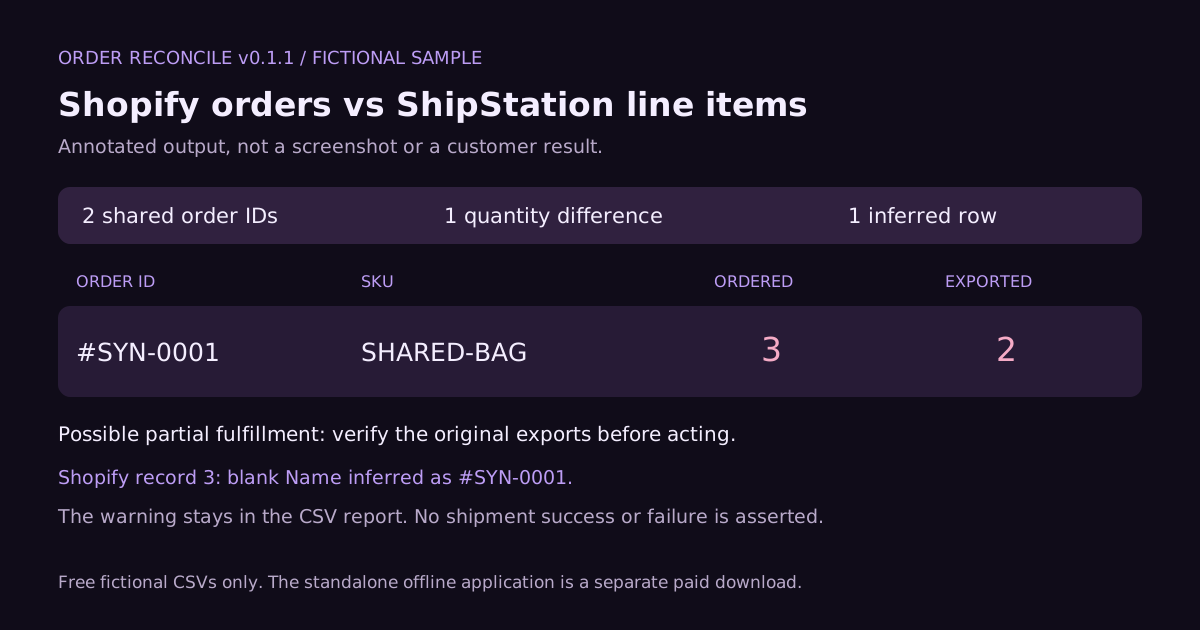
The 3-versus-2 difference may describe a deliberate partial shipment, an export cutoff, a missing record, or another source-data issue. Check the order and every shipment label before making a shipping or refund decision.
4. Treat warnings as work to review
- Blank Shopify order names
- Shopify can leave order-level fields blank on additional item rows. Continuation inference is explicit and every inferred row is flagged. A populated non-line-item field, such as an internal
Id, address, or unfamiliar metadata, breaks the inference chain. An ambiguous row stays unmatchable. Never remove metadata merely to force a match. - Voided shipment labels
- When the optional filter is enabled,
true,yes, or1means voided;false,no, or0means active. Excluded rows generate a review warning. An unknown or blank value stops comparison with a source record number. Check its meaning in ShipStation rather than assuming active. With the filter disabled, all rows are compared without interpreting void status. - Repeated rows and split shipments
- Valid rows are summed by order ID and SKU. Exact duplicate shipment rows are not silently removed: removing one could discard a legitimate line item. Investigate inflated totals, split labels, cancellations, and partial shipments in the original systems.
- Missing IDs or malformed items
- An unmatched or unmatchable record is not proof of an unshipped order. Check scope, ID spelling, column mapping, and export integrity. Review all warnings even when the visible totals agree.
When a local comparison tool helps
If you regularly review two differently named export schemas with repeated order items, Order Reconcile v0.1.1 provides the column preset, order-and-SKU totals, review findings, and a downloadable audit CSV in one offline HTML file. It costs ¥2,980 as a one-time purchase; each CSV/TSV file must be smaller than 5 MB.
It does not create labels, confirm delivery, automatically repair records, or provide an official Shopify or ShipStation integration. A spreadsheet or free CSV comparator may already fit your needs. Inspect the samples and limitations first.
Review the product and limitations →